
Integrating Saber Feedback with Redmine
With our Redmine integration, Saber Feedback will create a Redmine issue for each feedback report you receive via your Saber Feedback button.
Requirements:
- Redmine version 1.4.0 or newer
- REST Authentication Enabled
- At least one Project with Issues enabled
How to check your Redmine Version
Saber Feedback is only able to integrate with Redmine servers running version 1.4.0 or greater. v1.4.0 was released in April 2012. you can find out which version of Redmine you are running by logging into your Redmine server using an Administrator account, and clicking Administration from the top-left menu:

Then click Information from the administration menu:

This will take you to a page that displays your Redmine version, eg:

How to enable REST Authentication
To enable REST Authentication, log into your Redmine server using an Administrator account, and then click Administration from the top-left menu:
Then click Settings from the administration menu:

Then click Authentication from the tabs, make sure the Enable REST web service checkbox is checked, and then click the Save button:

How to enable Issues on a Project
Navigate to a project in Redmine, and then click its Settings tab:

Then choose the Modules tab under Settings, make sure the Issue tracking checkbox is checked, and then click the Save button:

How to find your API Key
Log into your Redmine account, and click on My account from the top-right menu:

On the right hand side of this page you should see a grey box with API access key followed by show

Note: If you don’t see this, you need to first enable REST Authentication (see above)
Click on Show to reveal your API Key, which you can then copy for use in Saber Feedback.
How to set up a Redmine integration in Saber Feedback
On your feedback form’s Integrate tab, click Connect next to Redmine. See Setting up a new integration if you’re not sure where to find it. Then paste the root URL of your Redmine server into the Redmine URL field, and your API key into the Redmine API Key field. You can find your Redmine server’s root URL by logging into your account and then clicking Home from the top-left menu, and copying the address you navigate to.
Once you’ve entered both, click the Authenticate button:
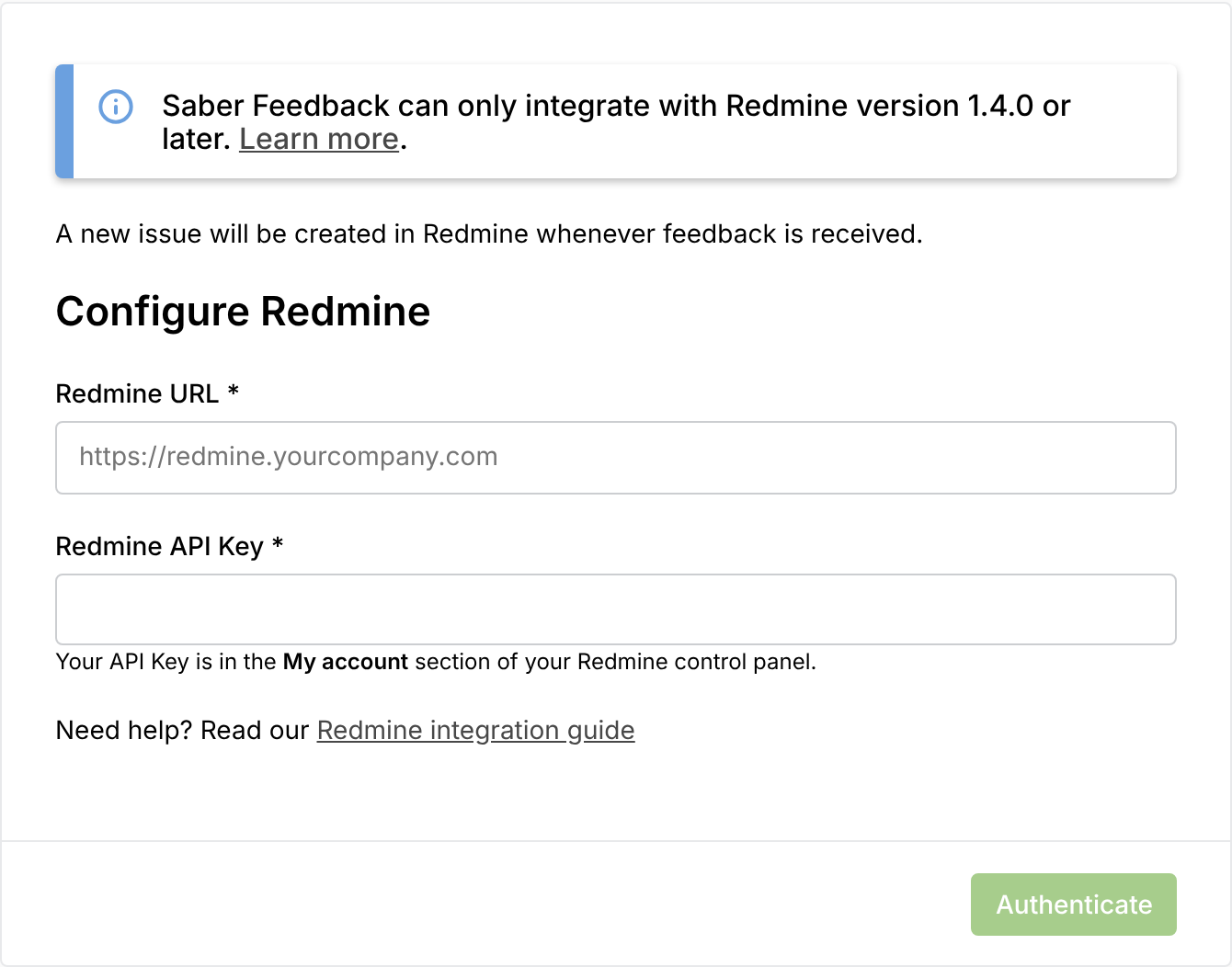
You will then be able to set up your Redmine integration:
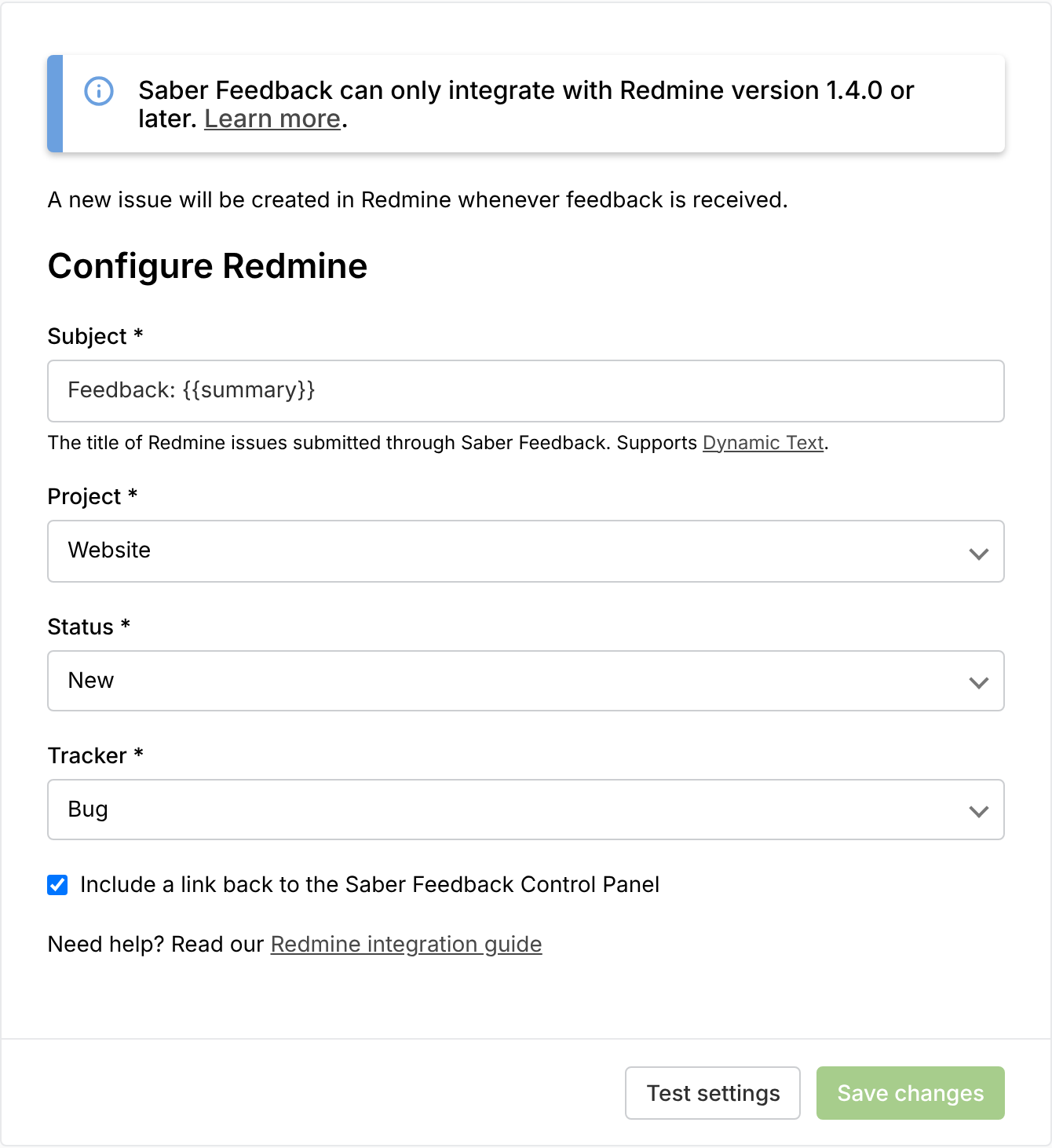
Subject
Required
The subject of the Redmine issues Saber Feedback creates. If it contains {{summary}}, this is replaced with a summary of the feedback. See Dynamic Text for the other values you can use.
Project
Required
The Redmine project where Saber Feedback creates issues.
Status
Required
The status new issues are given.
Tracker
Required
The tracker new issues are added to, such as Bug or Feature.
Include a link back to the Saber Feedback Control Panel
When this is ticked, each issue includes a link to the feedback report in your Saber Feedback control panel.
Test settings
Once you’ve saved your settings, click the Test settings button to send a sample feedback report to your Redmine project.
If you change your settings, click Save changes before testing, as the test uses your saved settings.